
Gaming App Monetization Strategy with Google Ad Exchange

Gaming App Monetization Strategy with Google Ad Exchange (AdX)

Gaming apps are among the top revenue-generating categories in the app industry. But building a popular game is only half the battle. The real challenge begins when you try to monetize it. One of the most powerful tools available today for gaming app monetization is Google Ad Exchange (AdX).

In this article, we’ll explore the complete strategy to monetize your gaming app using AdX. Whether you’re a beginner or an experienced developer, this guide will help you unlock the full revenue potential of your app.

Why Choose Google Ad Exchange for Gaming App Monetization?

Google Ad Exchange offers premium demand and better control over your ad inventory. Unlike AdMob, which primarily serves ads from Google’s network, AdX connects you to a wide range of advertisers, including top-tier brands and agencies.

Here’s why AdX is perfect for gaming apps:

  • Access to high-paying advertisers
  • Real-time bidding (RTB) to increase CPMs
  • Advanced reporting and targeting
  • Better fill rates globally
  • Seamless integration with Google Ad Manager

Let’s now break down the strategy to effectively use AdX in your gaming app.

Step 1: Understand Your App and Audience

Before jumping into monetization, understand your game type and audience.

Ask yourself:

  • What is the average session time?
  • How frequently do users return?
  • Where are your users located?
  • Are they casual or hardcore gamers?

These answers will shape your ad format and placement choices. For example, rewarded ads work better in casual games with long playtime.

Step 2: Get Access to Google Ad Exchange

Unlike AdMob, AdX access is not open to everyone. You need to go through a certified Google publishing partner like Monetiscope.

How to Get Access:

  • Partner with a Google AdX reseller or MCM (Multiple Customer Management) partner
  • Sign a managed account agreement
  • Integrate your app into their monetization platform

Once approved, you can begin setting up inventory in Google Ad Manager (GAM).

Step 3: Set Up Your Gaming App in Google Ad Manager

After access, set up your gaming app in GAM.

Key Setup Steps:

  1. Create Ad Units – Define placements like banner, interstitial, rewarded.
  2. Set Key-Values – Track in-game events and user behavior (e.g., level_complete, powerup_use).
  3. Add Inventory – Register your app under App Settings.
  4. Link SDK – Integrate Google Mobile Ads SDK in your game.

This setup helps serve and track high-performance ads across all devices.

Step 4: Choose the Right Ad Formats for Gaming Apps

Not all ad formats perform equally in games. You must pick formats that enhance, not interrupt, gameplay.

Best Ad Formats for Gaming Apps:

1. Rewarded Video Ads

These give users in-game rewards for watching ads. They have high engagement and eCPM. Use them in places like:

  • Extra lives
  • Bonus coins
  • Unlock levels

2. Interstitial Ads

These are full-screen ads shown between game transitions. Limit their frequency to avoid user frustration. Ideal moments include:

  • After level completion
  • Game over screens

3. Native Ads

Blend seamlessly with your game’s UI. These work well in menu screens or shop interfaces.

4. Banner Ads

Use banners at the top or bottom of the screen. Avoid placing them during active gameplay. Keep them visible on non-intrusive screens.

5. App Open Ads

Show these when users reopen the app after inactivity. Ensure they don’t delay the gaming experience.

Step 5: Optimize Floor Prices and Bidding Rules

To increase revenue, you need to set smart pricing rules in AdX.

Key Optimization Tips:

  • Set Dynamic Floor Prices – Increase CPMs during peak hours or geos.
  • Use Unified Pricing Rules – Apply pricing across buyers for consistency.
  • Enable Open Bidding – Let third-party demand sources compete with AdX.

Test and tweak floor prices regularly. Use historical data to set performance benchmarks.

Step 6: Segment Your Audience for Better Targeting

Segmenting users helps serve more relevant ads. More relevant ads mean better engagement and higher payouts.

Segment by:

  • Geo (e.g., US users vs. India users)
  • Platform (iOS vs. Android)
  • Player behavior (e.g., paying vs. non-paying)
  • Time of day

Use Google Ad Manager’s key-value targeting to set this up.

Step 7: Improve Ad Viewability and Engagement

High viewability leads to better CPMs. Make sure your ad placements are visible and non-intrusive.

Best Practices:

  • Avoid accidental clicks (no bait placements)
  • Keep rewarded videos optional
  • Use sticky banners on non-interruptive screens
  • Test multiple placements and measure CTR

Track viewability reports in GAM and remove underperforming units.

Step 8: Analyze Reports and Improve Continuously

AdX and GAM offer detailed performance reports. Use them to understand what’s working and what’s not.

Focus on Metrics Like:

  • eCPM
  • Fill Rate
  • Impression CTR
  • Revenue per user
  • Session duration vs. ad frequency

Run A/B tests regularly. Change ad frequency, format, and timing to find the sweet spot.

Step 9: Balance Monetization with User Experience

Don’t let monetization ruin your game. If players feel bombarded by ads, they’ll leave—and your revenue will drop.

Balancing Tips:

  • Limit interstitials to 1 per session or per level
  • Always let users skip rewarded videos
  • Keep banners away from main action buttons
  • Offer an ad-free version via in-app purchase (IAP)

Happy users lead to higher retention and lifetime value.

Step 10: Stay Updated with Google Policy and AdX Trends

Google frequently updates policies and ad delivery mechanisms.

Stay Compliant by:

  • Reading Google’s Ad Policy Center regularly
  • Testing ads on real devices before going live
  • Avoiding deceptive placements
  • Keeping SDKs and APIs up to date

Also, explore new formats like interactive or playable ads as they emerge.

Bonus Tip: Hybrid Monetization = More Revenue

Don’t rely only on ads. Combine AdX ads with in-app purchases (IAP).

Some players hate ads but will pay to remove them. Others will watch ads for rewards. A hybrid strategy captures both segments.

You can also try direct brand deals once your DAU (daily active users) grows.

Final Thoughts

Monetizing your gaming app with Google Ad Exchange is a smart move. But it requires the right strategy, careful testing, and constant optimization. Focus on user experience first—ads should complement gameplay, not ruin it.

FAQs on Gaming App Monetization with Google Ad Exchange

What is Google Ad Exchange (AdX)?

AdX is a premium ad marketplace by Google. It connects publishers with high-quality advertisers using real-time bidding.

How is AdX different from AdMob?

AdMob is easy to start with but offers limited demand. AdX offers better CPMs, advanced controls, and premium brand ads.

Can I use both AdMob and AdX together?

Yes, you can. Use AdMob for fallback or mediation. Set AdX as the primary source for high-value inventory.

Do I need a certified partner to access AdX?

Yes. You need to work with a Google Publishing Partner (like Monetiscope) to gain access to AdX.

What are the best ad formats for gaming apps?

Rewarded video and interstitial ads work best. They fit naturally into gameplay and generate strong returns.

How can I increase my app’s eCPM with AdX?

Segment users, test floor prices, and improve ad placements. Also, focus on rewarded formats and premium geos.

Will ads affect my app’s retention?

If done wrong, yes. But well-timed and user-friendly ads can enhance experience and even boost retention.

What is the ideal ad frequency for gaming apps?

There’s no fixed rule. Start with 1 interstitial per level or every 3–5 minutes. Adjust based on user behavior.
An In-Depth Guide to Using Google Analytics 4 (GA4) – Features, Setup & Tips

An In-Depth Guide to Using Google Analytics 4 (GA4) – Features, Setup & Tips

In the ever-evolving world of digital marketing, understanding user behavior is crucial. Google Analytics 4 (GA4) is the latest version of Google’s analytics platform. It’s designed to help marketers and business owners track and analyze user interactions across websites and apps.

This guide will walk you through GA4 step by step. Whether you’re a beginner or migrating from Universal Analytics, you’ll gain clear insights into setup, features, reports, and strategies to unlock the power of GA4.

1. What is Google Analytics 4 (GA4)?

Google Analytics 4 is a powerful web analytics tool developed by Google. It tracks user behavior across websites and mobile apps. GA4 replaces Universal Analytics and uses event-based tracking instead of session-based tracking.

This shift means more detailed data and better cross-platform analysis. GA4 focuses on user journeys, not just page views.

2. Key Differences Between GA4 and Universal Analytics

Understanding the differences is essential if you’re used to Universal Analytics (UA):

FeatureUniversal Analytics (UA)Google Analytics 4 (GA4)
Tracking ModelSession-basedEvent-based
Data StreamsSeparate for web and appCombined (web + app)
ReportingPre-defined reportsCustomizable reports
Bounce RateAvailableReplaced with engagement metrics
Machine LearningLimitedDeep integration
User PrivacyLess flexibleEnhanced controls and GDPR-friendly

3. Setting Up Google Analytics 4 (GA4) on Your Website

Step 1: Create a GA4 Property

  1. Go to your Google Analytics account.
  2. Click “Admin” and select your desired account.
  3. Under “Property,” click “Create Property.”
  4. Enter property name, time zone, and currency.
  5. Choose “Web” or “App” as the data stream.

Step 2: Add Data Stream

  1. Choose Web to track your website.
  2. Enter your website URL and stream name.
  3. Enable enhanced measurement options.
  4. Click “Create Stream.”

Step 3: Install the Tracking Tag

Use Google Tag Manager (GTM) or Global Site Tag (gtag.js):

  • For GTM: Add a GA4 Configuration tag and paste your Measurement ID.
  • For gtag.js: Paste the provided code into the <head> section of your website.

4. Understanding the Google Analytics 4 Interface

Once GA4 is set up, explore the dashboard. You’ll see key areas like:

  • Home: Quick overview of users, traffic, and trends.
  • Reports: Detailed sections for user acquisition, engagement, monetization, and retention.
  • Explore: Create custom reports and use analysis techniques.
  • Advertising: Monitor campaign performance across platforms.
  • Configure: Set up custom events, conversions, and audiences.

Each section helps you analyze your user journey better.

5. How Events Work in GA4

In GA4, everything is an event. No more goals or pageviews-only tracking. You now track:

  • Automatically collected events: Like page views, session starts.
  • Enhanced measurement events: Like scrolls, site search, outbound clicks.
  • Recommended events: Like purchases, sign-ups, and logins.
  • Custom events: Anything you define with a custom name.

Example:

Instead of tracking a “pageview,” GA4 logs an event called page_view.

6. Tracking Conversions in GA4

Conversions are critical actions you want users to take. To track conversions:

  1. Go to “Configure” → “Events.”
  2. Find the event (like purchase or sign_up).
  3. Toggle the switch to mark it as a conversion.

You can also create custom events and then mark them as conversions.

Tips:

  • Use clear naming for custom events.
  • Ensure proper tagging in GTM or code.

7. Creating Audiences in GA4

Audiences help you segment users for remarketing or analysis. You can define them based on:

  • Demographics
  • Device type
  • Source/medium
  • Behavior (like “visited checkout page”)

To create one:

  1. Go to “Configure” → “Audiences.”
  2. Click “New Audience.”
  3. Choose suggested templates or build custom rules.

8. Reports Overview in GA4

GA4 has fewer pre-set reports than UA. However, they’re more flexible and focused. Key reports include:

a. Acquisition

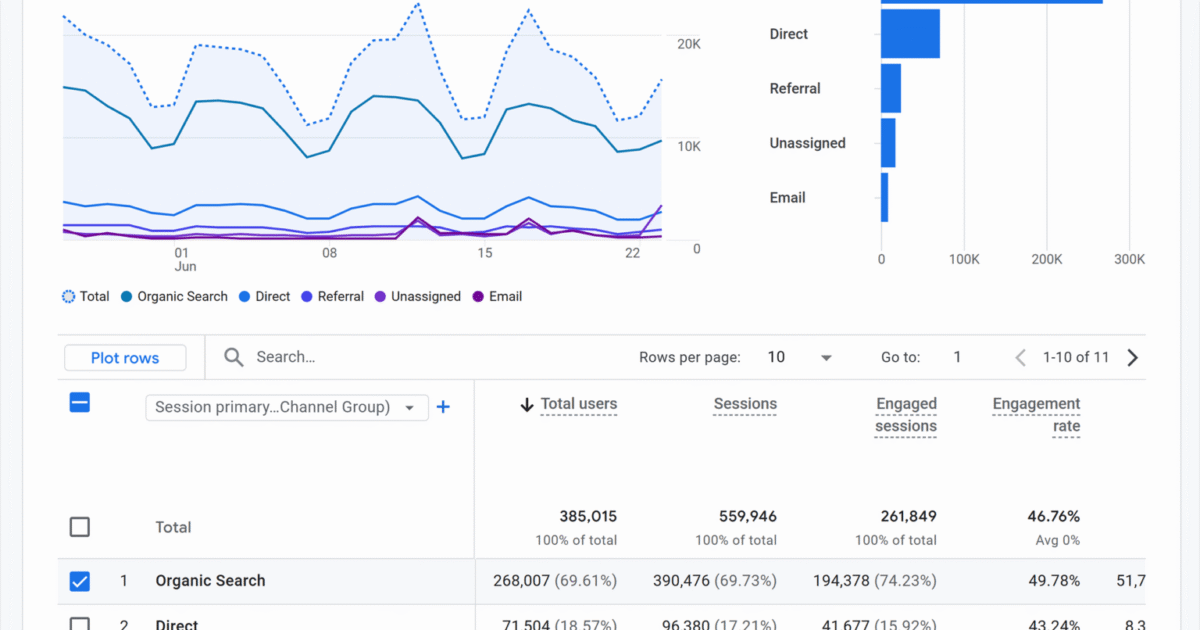
Shows how users found your site (organic, paid, direct, etc.).

b. Engagement

Shows what users did on your site—page views, scrolls, video views.

c. Monetization

For eCommerce and app purchases, shows revenue, item views, and purchases.

d. Retention

Helps analyze how often users return to your site or app.

9. Using the Explore Tool (Advanced Analysis)

The “Explore” tab is where GA4 shines for deep analysis. You can create:

  • Funnel Analysis: Visualize user flow from start to finish.
  • Path Analysis: See the steps users take through your site.
  • Segment Overlap: Understand common behaviors among user groups.
  • Cohort Analysis: Track behavior of user groups over time.

This section offers drag-and-drop reports, perfect for data storytelling.

10. Google Analytics 4 and Google Ads Integration

GA4 connects directly with Google Ads for better campaign tracking. You can:

  • Share audiences between platforms.
  • Track post-click behavior in detail.
  • Measure conversions across devices.

To Link:

  1. In GA4, go to “Admin” → “Google Ads Linking.”
  2. Select your account and complete setup.

11. Setting Up E-commerce Tracking in Google Analytics 4

For online stores, GA4 eCommerce tracking provides powerful insights.

Basic Setup:

  1. Use GTM or gtag.js to push purchase and item data.
  2. Enable “Monetization” in your data stream.
  3. Track events like view_item, add_to_cart, begin_checkout, and purchase.

Recommendation:

Use Google’s developer documentation to set parameters correctly.

12. Setting Up Cross-Platform Tracking

GA4 lets you track users across websites and mobile apps. This creates a full user journey.

To set up:

  • Add both app and web streams to the same GA4 property.
  • Use the same user ID across platforms for consistency.

13. Data Retention and User Privacy in GA4

GA4 comes with improved privacy features. You can:

  • Set data retention periods (2 or 14 months).
  • Anonymize IP addresses by default.
  • Disable ads personalization for specific events.

These controls help comply with GDPR, CCPA, and other laws.

14. GA4 Best Practices for Better Insights

  1. Plan your events structure early.
  2. Use consistent event naming conventions.
  3. Leverage Explore for deeper insights.
  4. Regularly check engagement metrics over bounce rate.
  5. Use UTM parameters to track marketing sources.

15. Common GA4 Mistakes to Avoid

  • Not marking key events as conversions.
  • Ignoring data discrepancies after migration.
  • Over-relying on automatic tracking without validation.
  • Not exploring advanced analysis reports.
  • Forgetting to test tags and events before going live.

16. Migrating from Universal Analytics to GA4

Since Universal Analytics stopped processing data on July 1, 2023, migration is essential.

Steps:

  1. Set up GA4 property (if not done).
  2. Duplicate important UA goals as GA4 events.
  3. Rebuild audiences and filters.
  4. Export UA historical reports for backup.

17. Future of GA4: What to Expect

Google is continuously improving GA4. Expect more automation, machine learning features, and predictive analytics.

Stay updated with the GA4 changelog and explore beta features.

Conclusion

Google Analytics 4 brings a more user-focused and flexible approach to analytics. With event-based tracking, enhanced customization, and machine learning, GA4 sets a new standard.

Whether you’re running a blog, eCommerce store, or mobile app, GA4 helps you understand users and optimize performance. Take time to learn the platform, customize it for your goals, and explore its powerful features.

FAQs About Google Analytics 4 (GA4)

Is GA4 free to use?

Yes, GA4 is completely free like Universal Analytics.

Can I use GA4 and UA together?

You could, but UA has stopped processing new data since July 2023.

How long does GA4 store data?

You can choose between 2 and 14 months for event-level data.

Does GA4 track IP addresses?

No, GA4 anonymizes IP addresses by default.

How can I export GA4 data?

You can export reports manually or use BigQuery for advanced exporting.

Do I need to know coding to use GA4?

Basic use doesn’t need coding. For custom events, some code or GTM knowledge helps.

How do I track button clicks in GA4?

Set up a click event tag using Google Tag Manager and define the trigger.

Can I still see bounce rate in GA4?

GA4 replaces bounce rate with “engagement rate,” offering deeper insights.

How to Grow and Monetize Your App on Android and iOS

How to Grow and Monetize Your App on Android and iOS

How to Grow and Monetize Your App on Android and iOS is a question every developer faces after launching their product. Building a mobile app is only the first step. The real challenge begins with growing and monetizing it. Whether your app is on Android, iOS, or both, strategic growth and monetization are essential for long-term success.

In this guide, we’ll break down the steps you need to follow to grow your app’s user base and generate consistent revenue. We’ll also introduce Monetiscope, a company that helps developers like you unlock the full monetization potential of your app.

Understanding How to Grow and Monetize Your App: A Complete Breakdown

Step 1: Build a High-Quality App

You can’t grow or monetize a poor product. Quality comes first.

  • Solve a real problem: Apps that offer real value grow faster.
  • Keep UI simple: A clean, intuitive design keeps users engaged.
  • Ensure fast loading times: Slow apps get deleted quickly.
  • Remove bugs early: Frequent crashes kill retention.

💡Tip: Launch a minimum viable product (MVP), then improve based on feedback.

Step 2: Optimize for App Store Discovery (ASO)

If users can’t find your app, they won’t download it. App Store Optimization (ASO) is the SEO of mobile apps.

Key ASO tips:

  • Use relevant keywords in your title and description.
  • Add high-quality screenshots and a demo video.
  • Encourage users to leave reviews.
  • Choose the right app category.

Regularly update your ASO strategy. Trends change fast in the app world.

Step 3: Leverage Paid Marketing Channels

Don’t rely only on organic traffic. Paid ads can drive faster installs.

Effective ad platforms:

Start with a small budget. Test different creatives. Then scale what works.

Also, retarget users who dropped off. It’s cheaper to re-engage than to acquire new users.

Step 4: Focus on User Retention

Getting users is hard. Keeping them is even harder.

Proven retention strategies:

  • Push notifications (but avoid spamming)
  • In-app messages to guide new users
  • Loyalty programs or streak rewards
  • Personalization using user behavior

Track metrics like Day 1, Day 7, and Day 30 retention. Improve these over time.

Step 5: Grow Through Community and Referrals

Let your users help you grow.

What works:

  • Add in-app referral rewards.
  • Create a community on Discord, Reddit, or Facebook.
  • Partner with influencers in your niche.
  • Run contests and giveaways.

People trust friends and creators more than ads. Use that to your advantage.

Step 6: Test Monetization Models Early

Don’t wait too long to start monetizing. Users need to get used to your monetization strategy.

Common monetization options:

  1. In-App Ads
    Works well for free apps with large user bases. Show ads without disrupting experience.
  2. In-App Purchases (IAPs)
    Perfect for gaming, tools, or freemium apps. Offer virtual goods, upgrades, or unlocks.
  3. Subscription Models
    Useful for content, productivity, or fitness apps. Offer value monthly or yearly.
  4. Paid Apps
    Rare but can work if your app solves a niche problem better than anyone else.

Test combinations. For example, a free app with ads and optional in-app purchases.

Step 7: Use Monetiscope to Maximize Revenue

Most app developers struggle with monetization. That’s where Monetiscope comes in.

What is Monetiscope?

Monetiscope is a mobile app monetization partner. It helps developers increase ad revenue by providing full access to Google Ad Exchange (AdX) and advanced ad optimization tools.

What does Monetiscope offer?

  • Access to Google ADX (beyond basic AdMob)
  • Higher fill rates and CPMs
  • Intelligent ad placement guidance
  • Floor price management and open bidding
  • Real-time dashboard and analytics
  • Hands-on support and troubleshooting

Whether you have an Android or iOS app, Monetiscope customizes your ad stack for maximum performance.

Step 8: Use Analytics to Guide Growth

Data tells you what’s working and what’s not. Don’t rely on guesswork.

What to track:

  • Daily and monthly active users (DAU/MAU)
  • Retention rates (D1, D7, D30)
  • Lifetime value (LTV)
  • Revenue per user (ARPU)
  • Funnel drop-offs and conversion rates

Use tools like Firebase, Adjust, Appsflyer, or Mixpanel. Let data shape your next update.

Step 9: Update Regularly and Communicate

Apps that feel “alive” retain more users.

Keep users engaged by:

  • Rolling out frequent updates
  • Fixing bugs and improving UI/UX
  • Adding new features based on user feedback
  • Announcing updates via in-app messages and social media

Also, reply to reviews. Show users that you care and listen.

Step 10: Prepare for Scaling

When growth happens, be ready to handle it.

  • Upgrade your servers or backend if needed.
  • Automate crash reporting and bug tracking.
  • Use CI/CD pipelines for faster releases.
  • Add localization to support international users.

Scaling isn’t just about traffic—it’s about sustaining quality.

Final Thoughts

Growing and monetizing an app is a continuous process. It’s a mix of product, marketing, and smart monetization strategies. With the right tools and partners like Monetiscope, you can turn your app into a strong, revenue-generating product.

Don’t wait to start optimizing. Every small step adds up over time.

Frequently Asked Questions (FAQ)

What is the best way to monetize a free app?

The best method depends on your audience. In-app ads, in-app purchases, and freemium models are common. Use Monetiscope to optimize ads for better revenue.

What’s the difference between AdMob and Google AdX?

AdMob is basic. Google AdX offers premium demand, better CPMs, and advanced controls. Monetiscope provides access to Google AdX with managed services.

How soon should I start monetizing my app?

Start testing monetization early—ideally from the MVP stage. This helps set user expectations and gives you data to improve.

How can I increase app downloads organically?

Use App Store Optimization (ASO), encourage user reviews, maintain high ratings, and update your app frequently. Leverage social media and influencer marketing.

How does Monetiscope help developers?

Monetiscope boosts ad revenue using Google ADX access, intelligent pricing, optimized ad placements, and ongoing expert support.

Can I use ads and subscriptions together?

Yes. Many apps combine ad monetization with subscriptions. Ads serve free users; subscriptions offer an ad-free or premium experience.

How much can I earn from in-app ads?

It varies based on user location, ad formats, app niche, and optimization. With Monetiscope, CPMs are typically higher than standard networks like AdMob.

How do I reduce app uninstalls?

Improve onboarding, avoid excessive ads, fix bugs quickly, and personalize the user experience. Push notifications can also help retain users.

Get AdX approval on apps

How to Get AdX Approval on Apps: Complete Guide for Publishers

If you’re a mobile app publisher looking to monetize beyond AdMob, Google Ad Exchange (AdX) is a big step up. AdX gives you access to premium demand sources, higher eCPMs, and advanced yield management. However, getting AdX approval for apps is not as simple as signing up. You need to meet certain requirements and follow the right steps. In this guide, we will explain how to get AdX approval on apps, what requirements you must meet, and how Monetiscope can help you make the most out of AdX.

Why AdX Over AdMob? AdX vs AdMob

Many publishers start with AdMob. It’s easy to use and beginner-friendly. But once your app grows, AdMob can fall short. Here’s why AdX is the better choice:

  • Higher eCPM: AdX gives you access to real-time bidding and premium demand.
  • More Control: Set floor prices, block low-quality ads, and choose ad formats.
  • Increased Fill Rate: Open bidding increases competition for every impression.
  • Detailed Reporting: AdX offers deeper data insights compared to AdMob.
  • Customization: Fine-tune your monetization strategy based on user geography, behavior, and device.

Minimum Requirements to get AdX Approval on Apps

To get approved for AdX, your app needs to meet certain quality and performance benchmarks. These include:

1. App Store Presence

Your app must be live on a recognized and trusted app store. That includes:

2. Install Base

A minimum of 10,000+ installs is typically required. This shows user interest and app viability.

3. Revenue Potential

Your app should have a monthly earning potential of $2,000 or more. This indicates you have enough ad impressions to attract interest from Google and advertisers.

4. App Rating and Reviews

Maintain a 3.5+ average rating and ensure negligible negative reviews. Google reviews your app’s credibility and user satisfaction.

5. User Experience

The app must offer a clean UI, fast loading times, and bug-free operation. Avoid unnecessary redirects or excessive permissions.

6. High-Value Content

Apps with original, engaging, or utility-driven content stand a better chance. Avoid low-effort apps like wallpaper changers or single-function calculators.

7. Policy Compliance

Ensure your app adheres to Google policies, including:

  • No misleading content
  • No excessive ads
  • No policy violations in past suspensions or bans

Step-by-Step Guide to Apply for AdX on Apps

  1. Evaluate Readiness: Check if your app meets the above-mentioned requirements.
  2. Partner With a Google AdX Reseller: Direct access to AdX is limited. Work with a certified partner like Monetiscope.
  3. Share App Details: Provide your app’s name, package ID, store link, user stats, email id, network code (if available) and ad revenue data.
  4. AdOps Review: Our team at Monetiscope will audit your app for eligibility.
  5. Submit for Approval: Once verified, we submit your app to Google for review.
  6. Implementation: After approval, we assist you with ad tag integration and monetization optimization.

Apply Now

Monetiscope Smart Dashboard & Services

We go beyond just approval. Here’s how Monetiscope makes AdX work better for you:

1. Smart Real-Time Reporting

Track your earnings, impressions, eCPMs, and fill rates in real-time with our intuitive dashboard. This allows faster decisions and better revenue tracking.

2. Revenue Optimization

We apply floor pricing strategies based on region, time of day, and user behavior. This helps increase your average eCPM and total revenue.

3. Better Fill Rate

By using multiple demand sources and open bidding, we increase ad fill rate. No more lost revenue from unfilled inventory.

4. Dedicated Support

Our team offers 24/7 support via WhatsApp, Teams, and email. We guide you through approval, setup, and troubleshooting.

5. Flexible Revenue Share

We offer one of the most competitive revenue shares in the market. No hidden fees. Full transparency.

6. Multiple Ad Formats

Choose from banners, interstitials, native, open ads, and rewarded video. We help select formats that align with your UX.

7. Ad Implementation Help

We provide all JS tags, SDK support, and hands-on integration assistance so you don’t need to be a developer to get started.

Final Thoughts

Getting AdX approval for your app can be a game-changer. While the entry bar is high, the benefits are even higher. With the right partner, like Monetiscope, you can unlock premium monetization, expert support, and long-term growth.

If you meet the criteria, let’s get your app into AdX and start boosting your revenue today.

Visit: www.monetiscope.com
Contact: support@monetiscope.com | WhatsApp: +91 9354200141 | Teams ID: live:.cid.1d059701526ed0e3

FAQs

Q1. Can I apply for AdX if my app is not on the Play Store?

You need to be live on a credible app store like Play Store, Apple Store, or Samsung Galaxy Store.

Q2. What if my app has under 10k installs?

You can apply, but approval chances are low. Focus on growing users first.

Q3. Does Monetiscope charge for AdX approval?

No upfront fees. We only earn from a revenue share after your app starts monetizing.

Q4. Can I use AdX and AdMob together?

Yes, you can use both. But we recommend optimizing through AdX for better yield.

Q5. How long does approval take?

Typically 1 to 7 working days, depending on the app quality and review timeline.

Q6. What kind of apps usually get rejected?

Low-value apps with spammy content, poor UX, or excessive ads usually fail the review.

Q7. Can I track performance live?

Yes, Monetiscope’s dashboard provides real-time tracking and historical reports.

Q8. Who do I contact for support?

You can reach our team via WhatsApp, Email, or Microsoft Teams. We offer 24/7 assistance.

App Store policy updates 2025

App Store Policy Updates 2025: Impact on Monetization and Ads

App Store Policy Updates in 2025 have introduced major changes from both Apple and Google, reshaping how developers, publishers, and advertisers approach monetization. With a strong focus on user privacy, transparent data handling, and stricter ad placement guidelines, these updates demand close attention. This article explores the most critical App Store policy updates 2025, their direct impact on monetization strategies, and the key actions app owners should take moving forward.

Key Highlights of the App Store policy updates 2025

1. Stricter Privacy Guidelines and User Consent

App stores now demand full transparency in data collection.

Apple’s App Tracking Transparency (ATT) framework, introduced in earlier years, is now stricter. Apps must provide granular details about data use. Users must explicitly consent before apps track any personal data.

Google Play has also rolled out Privacy Sandbox for Android. It reduces reliance on cross-app identifiers and replaces them with privacy-preserving APIs.

Impact:

  • Ad networks relying on user-level tracking now face targeting issues.
  • Developers must adopt contextual advertising over personalized ads.
  • CPM (cost per mille) might drop if audience data becomes limited.

What to do:

  • Use clear consent prompts with value exchange messaging.
  • Shift to SKAdNetwork (Apple) or Privacy Sandbox (Google) for measurement.
  • Partner with ad networks that are privacy-compliant.

2. Updated In-App Purchase (IAP) Requirements

Apple and Google now reinforce using their IAP systems for digital goods.

Apps offering digital services must process payments through native platforms. This includes subscriptions, content, game items, and more. Apps can’t redirect users to external payment links.

Impact:

  • App stores take up to 30% commission on each transaction.
  • Revenue share decreases for developers relying heavily on in-app sales.
  • Apps with alternative billing options face rejections or penalties.

What to do:

  • Restructure monetization to favor ads and physical goods if possible.
  • Consider hybrid models that balance IAP and ad revenue.
  • Factor platform commission when pricing your offerings.

3. Changes to Ad Placement and Format Guidelines

Both app stores have updated their rules on ad placements.

Google Play now flags interstitials that interrupt users unexpectedly. Apple has similar policies under Human Interface Guidelines. Ads must be clearly distinguishable and avoid tricking users into clicks.

Impact:

  • Developers using full-screen ads must follow tighter rules.
  • Misuse may result in app removal or demotion in search rankings.
  • Ad fill rates and viewability may decline for non-compliant formats.

What to do:

  • Use rewarded ads and native placements instead of forced interstitials.
  • Follow placement timing best practices—such as post-level completion.
  • Monitor policy compliance through automated tools or SDKs.

4. Crackdown on Deceptive Ads and Dark Patterns

Apps that use misleading ads or design tricks now face penalties.

This includes false countdowns, disguised ad buttons, or hidden close icons. Both Google and Apple now review such patterns more aggressively.

Impact:

  • Ad revenue from clickbait or deceptive creatives will shrink.
  • Apps using aggressive monetization tactics risk removal.
  • Long-term trust and retention may drop for deceptive strategies.

What to do:

  • Focus on clean, honest ad creatives.
  • Choose ad networks that enforce creative quality control.
  • Run regular UX audits to avoid unintentional violations.

5. Enhanced Subscription Transparency Rules

App stores want to ensure users fully understand subscriptions.

Apps must clearly show price, billing frequency, and cancellation process. Free trials should highlight start and end dates clearly. Ambiguous terms will no longer pass review.

Impact:

  • Reduced churn from accidental subscriptions.
  • Higher initial friction in subscription sign-ups.
  • Greater trust leads to longer-term user retention.

What to do:

  • Add subscription explainer screens before checkout.
  • Use plain language and avoid fine print.
  • Test opt-in flows to optimize conversion and clarity.

6. Tighter Rules on Kids and Family Apps

Apps targeted to children now have more specific advertising rules.

Google’s “Designed for Families” program and Apple’s child-focused app rules limit data collection and ad types. Behavioral targeting is not allowed in these apps.

Impact:

  • Contextual ads become the primary format for kid apps.
  • Revenue potential might drop due to limited targeting.
  • Approval for ad SDKs in kid-friendly apps is now stricter.

What to do:

  • Use only certified ad networks for children’s content.
  • Focus on educational and brand-safe advertisers.
  • Follow COPPA and GDPR-K compliance strictly.

7. New Developer Account Verification and Penalty System

To reduce fraud, app stores now enforce tighter developer account policies.

New account verification involves ID checks and stricter business documentation. Repeated violations may lead to permanent bans.

Impact:

  • Fake or duplicate accounts get removed quickly.
  • Honest developers gain more visibility and fewer copycats.
  • Recovery from policy violations is now harder.

What to do:

  • Keep a clean compliance history across apps.
  • Use a centralized dashboard to track policy changes.
  • Register as a business entity if possible for added trust.

8. Automated Policy Violation Detection Systems

App stores use AI to detect violations in real-time.

This includes ad behavior, crashes, SDK changes, and user complaints. Policies now trigger warnings and takedowns faster than before.

Impact:

  • Apps may be flagged or suspended without manual reviews.
  • Developers have less room to “test” grey-zone practices.
  • Faster detection leads to quicker user safety.

What to do:

  • Test updates on a smaller audience before global rollouts.
  • Set alerts for performance drops or negative reviews.
  • Regularly check your app console for warnings or messages.

9. Impact on Third-Party Monetization SDKs

Many SDKs must now meet store-level transparency and performance standards.

Non-compliant SDKs—especially those tracking users aggressively—may get blocked. Developers using banned SDKs could face app rejections.

Impact:

  • Increased pressure on SDK providers to be transparent.
  • Developers must switch to verified SDKs.
  • Integration time and cost may go up.

What to do:

  • Use SDKs that publish privacy practices clearly.
  • Read recent SDK audits or reviews before integration.
  • Avoid outdated or little-known monetization tools.

10. Regional Regulation Compliance (GDPR, DMA, DPDPA)

App stores now align more with regional laws.

The EU’s Digital Markets Act (DMA), India’s DPDPA, and similar laws affect app monetization deeply. Apps targeting these regions must handle consent, data export, and user access differently.

Impact:

  • Geo-targeted experiences must consider regulatory differences.
  • Monetization may vary by user location and data laws.
  • Cross-border data flow is now harder to manage.

What to do:

  • Build geo-specific compliance modules.
  • Enable region-specific opt-ins and privacy policies.
  • Store user data in region-compliant data centers.

Final Thoughts

Monetizing apps in 2025 requires more than just clever placements and high traffic. App store policies now demand transparency, ethical design, and respect for user privacy. While these rules may seem restrictive, they also push the industry toward higher quality and trust.

To succeed, developers must evolve quickly. Embrace new ad formats, work with privacy-focused partners, and always stay a step ahead of policy changes.

FAQs

What are the biggest changes in app store policies in 2025?

Stricter privacy rules, updated ad placement guidelines, and tighter IAP policies are the key changes.

How do these updates affect app monetization?

Developers may earn less from targeted ads and in-app purchases due to privacy and commission policies.

What ad formats are still allowed?

Rewarded ads, contextual banners, and native placements remain compliant across platforms.

Can I still use third-party ad SDKs?

Yes, but only if they follow privacy, performance, and transparency standards approved by app stores.

Are there new rules for subscriptions?

Yes, apps must clearly display billing terms, renewal dates, and cancellation steps upfront.

How can kids’ apps still earn ad revenue?

Use contextual ads and certified family-safe ad networks that comply with COPPA and GDPR-K.

What happens if an app violates the new policies?

Apps may face rejection, removal, or even permanent developer account bans depending on severity.

What’s the best way to stay compliant in 2025?

Monitor official store announcements, audit your SDKs, and always prioritize user privacy and transparency.

How to Monetize HTML5 Games with Google AdX

How to Monetize HTML5 Games with Google AdX

At Monetiscope, we help you unlock the full power of Google AdX, the industry’s largest ad exchange. Through our direct access and optimization tools, we connect your HTML5 game with premium advertisers around the world.
We set smart floor prices, enable open bidding, and maximize competition for your ad inventory. You get better fill rates and higher eCPMs, especially in Tier 1 markets. Our platform is fully compliant with Google’s policies and designed to give you the best performance without the headache of direct AdX account management.
By partnering with Monetiscope, you access the scale and efficiency of Google AdX—without having to handle it alone.

How to Monetize HTML5 Games with Monetiscope [2025]

Monetizing HTML5 games can feel like a puzzle. You want to generate real revenue without annoying your players. That’s exactly where Monetiscope comes in. We help HTML5 game developers and publishers earn more from their free users without breaking the gameplay flow.
In this article, we’ll explore the full strategy for HTML5 game monetization using Monetiscope. We’ll also cover the types of ads that work best, tools available for developers, and why more game creators around the world are choosing us.

Why Monetiscope is the Smart Choice for HTML5 Game Monetization

HTML5 games are lightweight, fast, and playable across any browser. But they also attract free users who don’t always convert. If you’re not monetizing those players properly, you’re leaving serious money on the table.
Let’s look at the reasons why developers trust Monetiscope to handle their monetization.

Game-Optimized Ad Formats That Fit Smoothly

You’ve probably seen bad ad placements ruin games. Pop-ups during gameplay. Overloaded screens. That’s not us.
At Monetiscope, we offer ad formats specifically designed for games. We test placements for maximum performance and minimal disruption. Ads appear at the right moment—between levels, at reward points, or in game menus.
This way, you keep players engaged, while earning from every session.

Rewarded Ads That Players Actually Like

Players are far more likely to watch an ad if they get something valuable in return. That’s why rewarded ads are one of our top-performing formats.
With Monetiscope, you can let players unlock extra lives, coins, skins, or skip levels by watching a short ad. This creates a win-win. Players get progress. You get revenue.
You control the rewards and frequency. We help you place them where they feel natural.

Real-Time Revenue Dashboard

No more waiting days to see what you’ve earned. Monetiscope provides a real-time reporting dashboard so you can track every impression, click, and dollar.
You get access to important metrics like fill rates, eCPM, ad requests, and revenue—all live. Our goal is full transparency so you stay in control.
You can even filter by game, country, or ad type.

Expert Ad Operations Team Behind You

You don’t have to be an ad tech expert. We have one of the best Ad Ops teams in the business. They’ll help you set up everything, from floor pricing to demand optimization.
We monitor your ad performance daily and adjust strategies based on your game’s behavior and your audience. Our team works like your own monetization department.

Lightweight Integration That Doesn’t Slow You Down

You shouldn’t have to rebuild your game to run ads. With Monetiscope, integration is simple.
We offer lightweight SDKs and ad tags that work with most popular HTML5 engines like Phaser, Construct, and Cocos Creator. Our code is fast-loading and optimized for mobile and desktop.
Get set up in hours—not weeks.

Access to Premium Ad Demand Worldwide

You’ll tap into high-quality ad demand through Google AdX, open bidding, and direct partners. We work with advertisers across every region and category.
Whether your traffic is from the U.S., India, Brazil, or Europe, we make sure your ad inventory is fully utilized.
Better demand means better fill rates, better CPMs, and higher overall revenue.

Designed for Cross-Device Monetization

HTML5 games work on desktops, tablets, and smartphones. So should your ads.
Monetiscope serves responsive ad formats that look and perform great across all screen sizes. Your monetization won’t break on mobile, and you don’t need separate setups.
One solution. Every device.

A Player-First Monetization Philosophy

We’ve played the games too. We know that over-monetizing leads to player drop-off.
Our strategy is simple—put the player experience first. Ads should enhance the game, not frustrate the user. That’s why we favor formats like rewarded ads and in-menu placements over intrusive popups.
We keep the balance so your players stick around longer, and you earn more over time.

Ad Formats That Work Best for HTML5 Games

Let’s break down the key ad formats we offer and how they work in different game environments:

  1. Rewarded Video Ads
    These allow users to watch a video ad to get something valuable—extra lives, coins, or unlocks.
    It’s completely opt-in, so players choose when to engage. This format drives the highest engagement and retention.
  2. Interstitial Ads
    These full-screen ads appear at natural pause points—like between levels or after a game over.
    They grab attention and deliver high CPMs, especially when timed right.
  3. In-Game Banners
    Banners are displayed during menus, on pause screens, or in non-interactive UI zones.
    These offer passive monetization without affecting gameplay.
  4. Pre-Roll Ads
    Short video ads shown before the game starts. Great for monetizing new users right away.
    They create an initial revenue touchpoint before gameplay begins.
  5. Playable Ads
    Interactive ads from other games. These are highly engaging and perfect for HTML5 environments.
    They attract premium advertisers and often offer better rates.

What Types of Games Can You Monetize?

  1. Almost any HTML5 game can benefit from smart ad monetization. Here are a few common types:
  • Hyper-casual games
  • Puzzle and trivia games
  • Platformers
  • Strategy and idle clickers
  • Sports and racing games
  • Multiplayer lobby games
  • Game aggregator portals

If your game can be played in a browser or webview, it can be monetized.

Ready to Monetize Your HTML5 Game?

Monetiscope is here to help you turn your free players into real revenue—without hurting your game experience.
Let us handle the ads so you can focus on building great games.

Get Started Now

Frequently Asked Questions

Will ads interrupt my gameplay?

Not with Monetiscope. We place ads at logical breaks like level changes or reward triggers. You stay in control.

How long does it take to integrate your solution?

Most developers integrate within a few hours. We offer simple SDKs and personalized support.

Can I use my own rewards in rewarded ads?

Absolutely. You define what players earn—coins, lives, skips, skins, anything you like.

Do I need to be exclusive with Monetiscope?

No. We offer flexible, non-exclusive agreements. You keep full ownership of your game and freedom.

How do I track my ad earnings?

Through our real-time dashboard. You’ll see impressions, revenue, CTR, and more—all updated live.

Will my players from all countries see ads?

Yes. We support global demand, so your users from any region will be monetized effectively.

What if I have multiple games?

No problem. Our dashboard lets you manage and track all your games from one place.

Is there a minimum traffic requirement?

We work with both small and large publishers. If you have quality traffic, we’ll help you monetize it.

How to Enable Collapsible Anchor Ads for Your Website or Applications

How to Enable Collapsible Anchor Ads for Your Website or Applications

Monetizing a website or mobile app needs smart ad placements. One easy and effective method is using collapsible anchor ads. These ads stay at the bottom of the screen and collapse when not needed, improving the user experience.
In this guide, I’ll show you how to set up collapsible anchor ads through Google Ad Manager. I’ll walk you through each step carefully.

What are Collapsible Anchor Ads?

Before setting them up, let’s understand what they are.
Collapsible anchor ads are sticky banner ads that sit at the bottom of the page.
When the user interacts with the page, the ad collapses into a smaller form.
This way, it doesn’t block the user’s view or annoy them.
They work great for mobile websites and mobile apps.
Google recommends using them because they increase ad engagement without hurting UX (user experience).

Why Should You Use Collapsible Anchor Ads?

Here are a few good reasons to use collapsible anchor ads:

  • They help you earn more ad revenue.
  • They keep the user experience smooth and non-intrusive.
  • They adjust automatically when a user scrolls or interacts.
  • They are lightweight and mobile-friendly.

If you care about both earnings and happy visitors, you should definitely enable them.

Step-by-Step Guide to Enable Collapsible Anchor Ads

Now, let’s get to the main part. Follow these steps carefully.
Step 1: Open Google Ad Manager
First things first, log in to your Google Ad Manager account.

Step 2: Go to Inventory and Click on Ad Units
Once inside your dashboard:

  • Navigate to the left-hand menu.
  • Click on the “Inventory” section.
  • From there, select “Ad units”.

This is where all your ad spaces live.
We’ll create a new one for the bottom anchor ad.

Step 3: Create a Bottom Anchor Ad Unit
Now, click on the “New ad unit” button.
Here’s what you need to do:

  • Name your ad unit clearly. Example: Bottom_Anchor_Ad_Mobile.
  • Choose size depending on your needs.
  • Generally, a responsive size or banner size (e.g., 320×50) works best.
  • Set it to appear at the bottom of the page.

Make sure to configure targeting if needed.
Finally, click Save and note down the ad tag code you’ll use later.

Step 4: Place the Ad Unit Code on Your Site or App
Once you create the ad unit:

  • Copy the generated ad tag code.
  • Insert it into the bottom section of your mobile site’s HTML.
  • If it’s an app, make sure the SDK (Software Development Kit) integration is correct.

This ensures your ad shows properly to users.

Step 5: Open Inventory Tools
After placing the ad code, go back to your Google Ad Manager dashboard.

  • Again, head to Inventory.
  • This time, click on “Inventory tools”.

Here’s where we’ll tweak some advanced settings.

Step 6: Click on Size Settings
Under Inventory Tools:

  • Find and click on “Size settings”.

Size settings help you control how different ad formats behave.
For collapsible ads, this part is important.

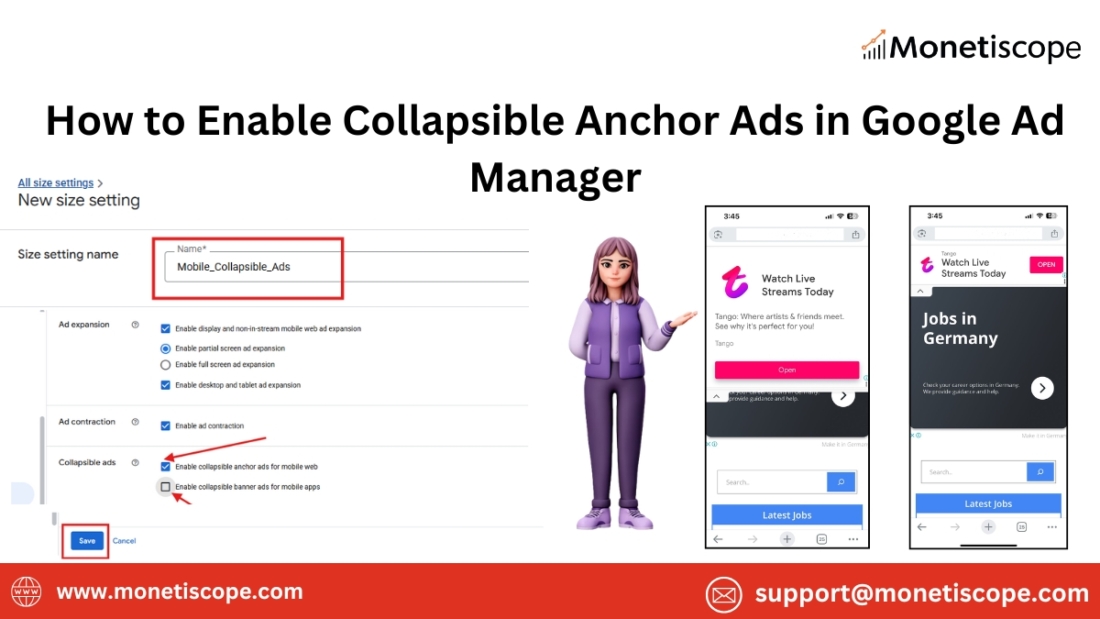
Step 7: Create a New Size Setting
In the Size Settings section:

  • Click on “New size setting”.
  • Now, you will create a custom size setting that allows collapsible behavior.

Step 8: Name the Size Setting
In the form:

  • Type a descriptive name like “Mobile_Collapsible_Ads_Setting”.

Clear naming helps you manage settings easily later.

Step 9: Enable Collapsible Ads for Mobile Web and Apps
Scroll down the form until you see:

  • “Collapsible ads” section.

You’ll see two options here:

  • Enable collapsible anchor ads for mobile web.
  • Enable collapsible banner ads for mobile apps.

Check both boxes.
This ensures your ads collapse properly across mobile websites and apps.

Step 10: Save the Size Setting

Finally:

  • Double-check all details.
  • Click on the Save button.

You have successfully enabled collapsible anchor ads. Now users will see smart, collapsible ads without feeling annoyed. And you get to increase your revenue smoothly!

Important Tips for Collapsible Anchor Ads

Here are a few tips to get even better results:
Use clean and non-intrusive designs.

Test on multiple devices before going live.

Monitor ad performance regularly inside Ad Manager.

Optimize loading speed for a smoother ad experience.

Common Mistakes to Avoid

Keep your website/app updated with best ad practices.
While setting up, make sure you don’t:
Forget to select the collapsible option.

Insert the wrong ad tag code.

Ignore mobile-specific size settings.

Overload your page with too many ads.

Neglect performance monitoring.

Stay careful at every step for best results.

Final Thoughts

Setting up collapsible anchor ads is not hard if you follow the right steps. They make your site or app more user-friendly and profitable. Just stay patient, careful, and keep monitoring your ad performance over time. Start today and unlock new earning opportunities without disturbing your users!

FAQs

What are collapsible anchor ads?

Collapsible anchor ads are banner ads that stick to the bottom of the screen.
They collapse automatically when users interact with the page.

Why should I enable collapsible anchor ads?

They improve user experience and increase your ad revenue.
They keep the ad visible without being annoying.

Can I use collapsible anchor ads on desktop?

No, they are designed mainly for mobile websites and mobile apps.
Use other ad formats for desktop if needed.

Are collapsible ads allowed by Google policies?

Yes, collapsible anchor ads are fully supported by Google.
Just make sure you set them up correctly in Ad Manager.

How much revenue can collapsible ads generate?

Revenue varies by traffic, ad placement, and audience.
However, they usually increase CTR (Click-Through Rate) and boost earnings.

Do collapsible ads slow down my site?

Not if implemented properly.
Use lightweight ad tags and optimize your site speed regularly.

How do I check if collapsible ads are working?

You can preview the ad using Google Publisher Console tools.
Also, monitor your impressions and clicks inside Ad Manager.

Can I disable collapsible behavior later?

Yes, simply go to the Size Settings and uncheck the collapsible options.
Then save the settings again.

Google Ad Manager Updates 2025

Google Ad Manager Updates: What Publishers Need to Know in 2025

Google Ad Manager (GAM) continues to evolve, bringing new features, policy changes, and monetization opportunities. In 2025, Google has introduced several updates that impact publishers. Staying informed about these changes is crucial for optimizing ad revenue and maintaining compliance.

In this article, we will explore the latest updates in Google Ad Manager and how they affect publishers. We will also discuss strategies to maximize revenue and ensure seamless ad delivery.

Key Google Ad Manager Updates for Publishers in 2025

1. Enhanced AI-Powered Yield Optimization

Google has significantly improved its AI-powered yield optimization in 2025. The system now analyzes real-time data and user behavior more effectively, allowing publishers to maximize their earnings.

Key Enhancements:

  • AI-driven price floors dynamically adjust based on demand.
  • Smarter ad placements ensure better viewability and engagement.
  • Automated bid strategy adjustments increase competition among advertisers.

Why This Matters:

With these advancements, publishers can expect higher CPMs and better overall ad performance. AI-driven optimization reduces the need for manual adjustments, saving time and improving efficiency.

2. Improved Header Bidding Integration

Google has enhanced its support for header bidding, making it easier for publishers to integrate multiple demand partners. This change helps increase competition for ad inventory, leading to higher revenue.

New Features:

  • More transparent reporting on bid responses and auction dynamics.
  • Faster load times with optimized auction processes.
  • Better compatibility with server-side header bidding solutions.

How Publishers Benefit:

With improved header bidding, publishers can maximize demand for their ad space. More competition means higher bids, leading to increased revenue potential.

3. Stricter Ad Policy Enforcement

Google is cracking down on policy violations to ensure a better ad experience for users. Publishers need to be aware of stricter enforcement regarding ad placements, content policies, and invalid traffic.

Key Policy Updates:

  • Stricter rules on deceptive ad placements.
  • More frequent invalid traffic audits.
  • AI-driven monitoring to detect policy violations faster.

How to Stay Compliant:

To avoid penalties, publishers should review their ad placements and traffic sources regularly. Staying compliant ensures continued access to premium demand sources and prevents revenue loss.

4. Enhanced Video Ad Monetization Features

Video ads continue to dominate digital advertising, and Google has introduced new tools for publishers to maximize video ad revenue.

New Video Ad Features:

  • Better support for out-stream and in-stream video ads.
  • AI-powered content scanning for better ad relevance.
  • Advanced reporting to track video ad performance in real-time.

Why This Is Important:

With these improvements, publishers can run video ads more effectively. Enhanced tracking and targeting options lead to better engagement and higher revenue potential.

5. Mobile-First Monetization Enhancements

Google recognizes the growing mobile audience and has introduced updates that improve ad delivery on mobile devices.

Key Mobile Monetization Updates:

  • Faster-loading ads to improve user experience.
  • Improved compatibility with AMP (Accelerated Mobile Pages).
  • AI-driven ad placement optimizations for mobile traffic.

Impact on Publishers:

With these enhancements, publishers can deliver high-performing mobile ads without affecting page speed or user experience.

6. Privacy-First Ad Targeting and Consent Management

As privacy regulations become stricter, Google has introduced new privacy-focused ad targeting solutions.

New Privacy Features:

  • Expanded support for Google’s Privacy Sandbox.
  • Enhanced tools for managing user consent and data compliance.
  • More control over personalized ad targeting.

Why This Matters:

Publishers must ensure compliance with privacy laws while maintaining ad revenue. These updates provide better tools for balancing user privacy and monetization.

7. Better Reporting and Analytics Tools

Google has upgraded its reporting and analytics capabilities in 2025, making it easier for publishers to track performance.

New Reporting Features:

  • AI-powered insights to predict revenue trends.
  • Custom dashboards with real-time data visualization.
  • More granular reporting for different ad formats.

How Publishers Benefit:

With improved analytics, publishers can make data-driven decisions to optimize their ad strategy and increase revenue.

8. Advanced Fraud Detection and Traffic Quality Improvements

Google has intensified its efforts to combat ad fraud and improve traffic quality.

Fraud Prevention Updates:

  • AI-driven fraud detection for better accuracy.
  • Stronger penalties for publishers with high invalid traffic.
  • New transparency tools to help publishers identify fraudulent activity.

Why This Is Important:

Ad fraud can lead to revenue loss and account suspensions. With improved fraud detection, publishers can maintain a clean ad inventory and build trust with advertisers.

9. Integration With Third-Party Ad Tech Solutions

Google Ad Manager now offers better integration with third-party ad tech solutions, allowing publishers to enhance their monetization strategies.

Key Integrations:

  • Support for more SSPs and DSPs.
  • Seamless integration with ad mediation platforms.
  • Better API access for custom ad solutions.

How Publishers Benefit:

These integrations provide more flexibility, allowing publishers to expand their monetization strategies beyond Google’s ecosystem.

10. Improved Support for Connected TV (CTV) Monetization

As CTV continues to grow, Google has enhanced its tools for publishers monetizing CTV content.

New CTV Features:

  • Improved ad serving for CTV apps.
  • Enhanced targeting for streaming audiences.
  • AI-powered ad frequency controls to reduce ad fatigue.

Why This Is Significant:

With better CTV monetization tools, publishers can tap into the growing streaming ad market and maximize revenue.

By staying informed about these updates, publishers can optimize their ad revenue and ensure compliance with Google’s policies. Implement these strategies to make the most of Google Ad Manager in 2025!

FAQs: Google Ad Manager Updates in 2025

What are the biggest Google Ad Manager updates in 2025?

Google has improved AI-powered yield optimization, enhanced header bidding, and introduced stricter ad policy enforcement.

How do AI-driven price floors impact ad revenue?

AI-driven price floors adjust in real time, increasing competition among advertisers and maximizing CPMs for publishers.

What steps should publishers take to stay compliant with Google’s policies?

Regularly review ad placements, monitor traffic sources, and follow Google’s policy guidelines to avoid violations.

How do the new video ad monetization features benefit publishers?

They offer better ad relevance, improved tracking, and enhanced reporting, leading to higher video ad engagement and revenue.

What changes have been made to mobile ad monetization?

Google has introduced faster-loading ads, improved AMP compatibility, and AI-driven mobile ad placement optimizations.

How can publishers improve privacy compliance with the new updates?

Use Google’s Privacy Sandbox, manage user consent effectively, and stay updated on data compliance regulations.

What new reporting tools are available for publishers?

Google now offers AI-powered insights, custom dashboards, and granular ad performance tracking.

How can publishers resolve common Google Ad Manager errors and issues?

Regularly check for policy violations, optimize ad placements, and use Google’s support resources for troubleshooting.

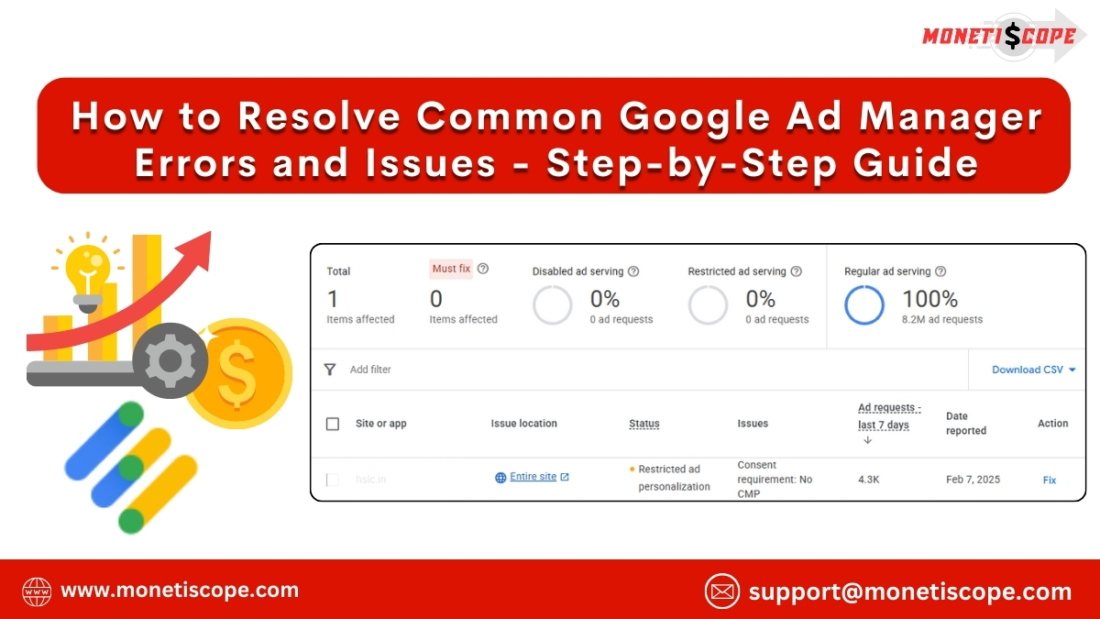
How to Resolve Common Google Ad Manager Errors and Issues

How to Resolve Common Google Ad Manager Errors and Issues

When dealing with ad management, understanding How to Resolve Common Google Ad Manager Errors and Issues is crucial for maintaining a smooth user experience and maximizing revenue. This guide focuses on troubleshooting frequent problems such as ad tag failures, blank ad slots, creative rendering issues, and more. By mastering these solutions, publishers can optimize ad delivery, improve viewability, and enhance overall ad performance on their websites or apps.

Google Ad Manager (GAM) is an essential tool for publishers looking to maximize ad revenue. However, even the most experienced users encounter errors that disrupt ad delivery and affect user experience. These issues can range from ad request failures to reporting discrepancies. Luckily, most of these problems have straightforward solutions. In this detailed guide, we’ll explore the most common Google Ad Manager errors and how to fix them.

How to Resolve Common Google Ad Manager Errors and Issues – Step-by-Step Guide

1. Ad Tag Not Serving Ads

Why This Happens:

This issue often arises due to incorrect ad tag implementation or conflicts with other scripts on the webpage. It can also occur if there are issues with targeting criteria or inventory settings in GAM.

How to Fix It:

  • Double-check Ad Tag Implementation: Ensure that the ad tags are correctly placed in the website’s HTML. Misplaced or broken tags won’t serve ads. Use Google Publisher Console to inspect ad slots and see if tags are firing correctly.
  • Check Ad Unit Status: Confirm that the ad unit is active in Google Ad Manager. If it’s paused or archived, ads won’t show.
  • Verify Targeting Criteria: Make sure the targeting criteria (such as geo, device type, or audience segment) match the intended audience. If the criteria are too narrow, ads may not serve.
  • Resolve JavaScript Conflicts: Other scripts on the page, such as those for analytics or social media, can conflict with GAM tags. Use browser developer tools to check for console errors and resolve them.
  • Clear Cache and Test: Sometimes, cached versions of the website can cause issues. Clear the browser cache and test again to see if ads are now appearing.

2. Line Items Not Delivering

Why This Happens:

This issue can occur due to conflicting delivery settings, low priority, or incorrect inventory targeting. It can also happen if the ad units are not linked correctly with the line items.

How to Fix It:

  • Review Delivery Settings: Check the start and end dates, frequency capping, and daily or lifetime limits. If the limits are too restrictive, the line items won’t deliver.
  • Adjust Priority Settings: Line items with lower priority may not deliver if higher-priority campaigns are taking up the inventory. Balance the priority levels to ensure even delivery.
  • Verify Inventory Targeting: Confirm that the targeted ad units, placements, and key-values are correctly set up. Any mismatch will prevent the line items from serving.
  • Troubleshoot Creative Issues: If the creative doesn’t meet the requirements (e.g., file size or format), the line item won’t deliver. Check GAM’s creative guidelines and adjust accordingly.
  • Check Competing Line Items: Sometimes, other line items are competing for the same inventory. Use the Delivery Inspector to see which ads are competing and adjust the settings.

3. Blank Ads or Empty Ad Slots

Why This Happens:

Blank ads or empty ad slots typically occur when no eligible line items are available to serve. This could be due to issues like low demand, incorrect targeting, or ad blocking extensions.

How to Fix It:

  • Enable Ad Exchange (AdX) Backfill: If using AdX, make sure backfill is enabled so that unsold inventory is filled with relevant ads.
  • Review Targeting Parameters: Revisit the targeting criteria to ensure they are not overly restrictive. Broaden the audience if necessary.
  • Increase Demand Sources: Consider adding more demand partners or enabling Open Bidding to maximize competition and fill rates.
  • Check for Ad Blockers: Confirm that ad blockers aren’t preventing ads from showing. Test the website using incognito mode or on different browsers.
  • Troubleshoot using Google Publisher Console: Use the console to diagnose the issue and see if there are any warnings or errors related to the ad slots.

4. Creative Not Rendering Properly

Why This Happens:

This usually happens due to incompatible creative formats, incorrect dimensions, or issues with third-party creatives. Browser compatibility issues can also cause improper rendering.

How to Fix It:

  • Verify Creative Format and Dimensions: Ensure that the creative format matches the ad unit’s specifications. For example, a 300×250 creative won’t render properly in a 728×90 ad unit.
  • Check Third-Party Tracking URLs: Sometimes third-party tags contain errors. Test the creative URL separately to see if it’s loading.
  • Confirm SSL Compliance: Non-secure creatives (HTTP) won’t render on secure (HTTPS) sites. Make sure all creatives are SSL-compliant.
  • Test on Multiple Browsers and Devices: Render issues can vary across browsers and devices. Test on multiple platforms to identify where the problem occurs.
  • Use the Creative Preview Tool: Google Ad Manager provides a preview tool to check how the creative appears before going live.

5. Ad Request Errors

Why This Happens:

Ad request errors occur when the browser or app fails to fetch an ad from Google Ad Manager. This can happen due to incorrect tag syntax, misconfigured key-values, or connectivity issues.

How to Fix It:

  • Validate Ad Tag Syntax: Make sure the ad tag syntax is correct. Even a small typo can cause an ad request error.
  • Check Key-Value Pairing: Ensure that the key-values used for targeting are correctly formatted and defined in GAM.
  • Review Network Security Settings: Sometimes, network security settings or firewalls block ad requests. Whitelist the required domains and URLs.
  • Ensure Internet Connectivity: Confirm that the device or browser has an active internet connection.
  • Analyze Console Errors: Use browser developer tools to analyze any console errors and troubleshoot accordingly.

6. Ad Latency Issues

Why This Happens:

Ad latency issues occur when ads load slowly, affecting user experience and viewability metrics. This is usually due to heavy creatives, server delays, or tag sequencing problems.

How to Fix It:

  • Optimize Creative Sizes: Use compressed images and lightweight code to reduce creative loading times.
  • Asynchronous Tag Implementation: Implement ad tags asynchronously to avoid blocking other page content from loading.
  • Enable Lazy Loading: This loads ads only when they come into the viewport, improving overall page speed.
  • Reduce Third-Party Calls: Limit the number of third-party trackers and scripts to minimize server requests.
  • Use a Content Delivery Network (CDN): Hosting creatives on a CDN can improve load times by serving assets from the nearest server.

7. Invalid Traffic and Click Fraud

Why This Happens:

Invalid traffic (IVT) and click fraud occur due to bots, automated scripts, or malicious activity, leading to revenue clawbacks or account suspension.

How to Fix It:

  • Enable Google’s IVT Protection: Use built-in invalid traffic protection tools provided by GAM.
  • Analyze Traffic Sources: Regularly check traffic sources in Google Analytics for unusual spikes or patterns.
  • Implement CAPTCHA Verification: Use CAPTCHA to prevent automated bots from generating clicks or impressions.
  • IP Blacklisting: Block known malicious IPs or suspicious sources identified in server logs.
  • Work with Trusted Partners: Ensure that demand sources and third-party vendors comply with Google’s traffic quality guidelines.


FAQs

Why are my Google Ad Manager ads not showing up?

Ads may not show up due to incorrect ad tag placement, targeting issues, or conflicts with other scripts. Verify the implementation and check for console errors.

How do I fix blank ad slots in Google Ad Manager?

Enable Ad Exchange backfill, broaden targeting criteria, and add more demand sources to fill blank ad slots.

What should I do if line items are not delivering?

Review delivery settings, adjust priority levels, and check for competing line items using the Delivery Inspector.

Why is my creative not rendering properly?

Ensure proper dimensions, SSL compliance, and test across multiple browsers.

How do I resolve click or impression discrepancies?

Audit tracking scripts, check for ad blockers, and sync reporting time zones.

What causes ad request errors?

Incorrect tag syntax, misconfigured key-values, or connectivity issues are common causes.

How can I appeal a policy violation?

Visit the Policy Center in GAM and follow the appeal process.

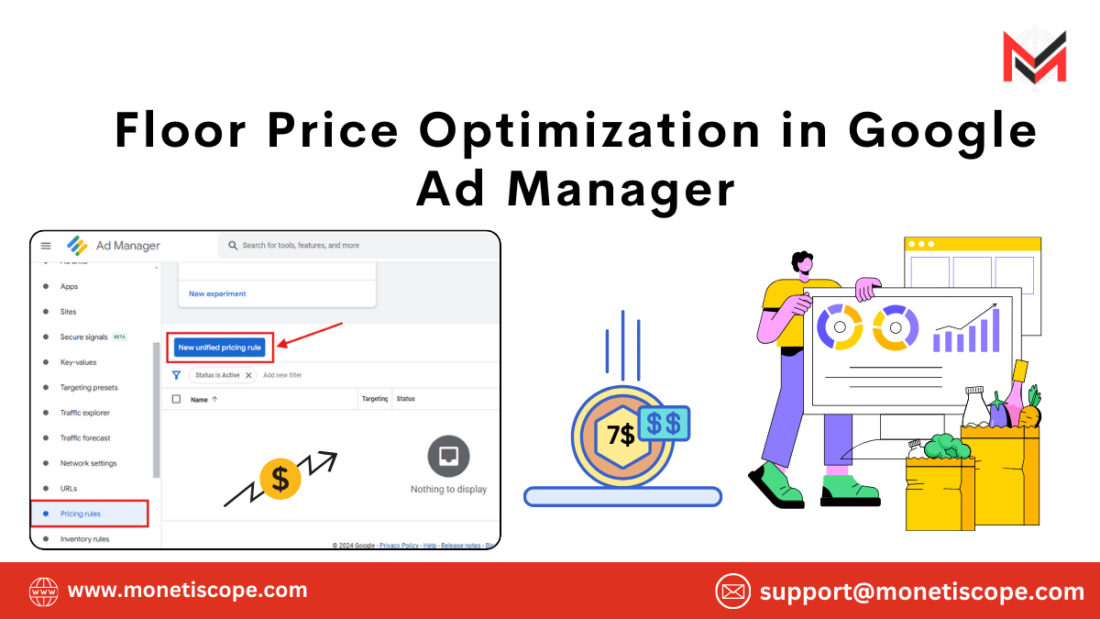
Floor Price Optimization in Google Ad Manager

Floor Price Optimization in Google Ad Manager: Ultimate Publisher Guide

In the ever-evolving world of digital advertising, maximizing ad revenue is every publisher’s ultimate goal. One critical factor in achieving this is understanding and effectively implementing Floor Price Optimization in Google Ad Manager. This guide will walk you through everything you need to know about floor price optimization, breaking down complex concepts into actionable steps.

What is Floor Price Optimization?

Floor price optimization refers to setting the minimum price for which an ad impression can be sold. It ensures that publishers don’t undersell their inventory while balancing the need to attract advertisers. Proper floor price optimization can significantly increase revenue without sacrificing fill rates.

Why is Floor Price Optimization Important for Publishers?

  1. Maximizes Revenue: By preventing impressions from being sold at undervalued prices, publishers can earn more per impression.
  2. Maintains Inventory Value: Setting the right floor price signals to advertisers that your inventory is premium and worth the investment.
  3. Improves Auction Dynamics: Optimized floor prices create healthy competition among bidders, pushing prices higher.
  4. Enhances Control: Publishers retain control over how their inventory is monetized, leading to better overall strategy execution.

Steps to Optimize Floor Prices in Google Ad Manager

1. Analyze Historical Data

Begin by reviewing your ad performance metrics in Google Ad Manager. Look at CPMs, fill rates, and advertiser bid trends. This analysis provides a baseline for setting competitive floor prices.

2. Segment Inventory

Not all inventory is equal. Segment your ad inventory based on factors like:

  • Audience demographics
  • Device types (desktop, mobile, tablet)
  • Geographic locations
  • Content categories

Segmentation allows you to set different floor prices for each segment, ensuring optimal revenue.

3. Test Dynamic Pricing

Dynamic pricing adjusts floor prices in real-time based on demand and market trends. Enabling dynamic pricing in Google Ad Manager helps maximize revenue without manually adjusting floor prices frequently.

4. Use Unified Pricing Rules

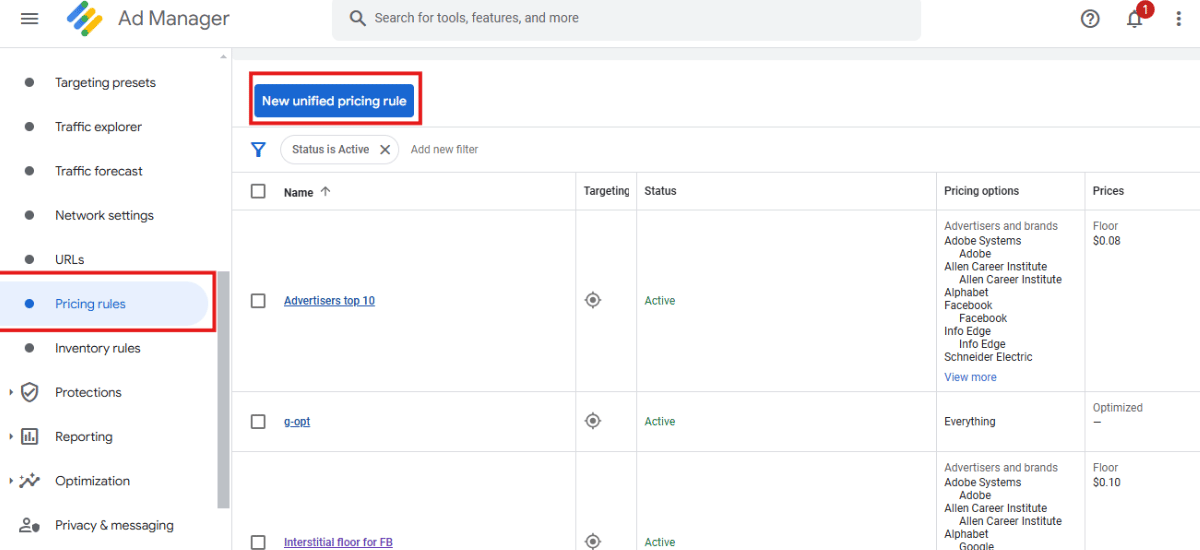
Unified pricing rules simplify floor price management across all demand sources. To implement:

  • Go to the Pricing Rules section in Google Ad Manager.
  • Create a new rule and set the floor price for the desired inventory.
  • Apply the rule to both programmatic and direct demand sources.

Unified pricing rules maintain consistency while ensuring that your inventory remains competitive.

5. Leverage Ad Revenue Analytics Tools

Use tools like Ad Manager’s reporting suite or third-party analytics platforms. They help you understand:

  • Bid behavior from advertisers
  • Floor price impacts on revenue and fill rates
  • Trends in ad performance

Insights from these tools allow you to tweak your strategy effectively.

6. Consider the Buyer’s Perspective

Advertisers prioritize ROI. If your floor prices are too high, they may skip your inventory. Strike a balance between revenue maximization and advertiser affordability.

7. Optimize for Seasonal Trends

Ad demand fluctuates with seasons and events. For example, holidays often bring higher advertiser budgets. Adjust your floor prices accordingly to capitalize on increased demand.

8. Avoid Over-Monetization

While higher floor prices seem appealing, they can hurt fill rates if set too high. Monitor fill rates and adjust to avoid unsold impressions.

9. Monitor and Iterate

Floor price optimization is not a one-time task. Regularly monitor performance metrics, experiment with pricing strategies, and adapt based on results. Consistent iteration ensures sustained revenue growth.

Common Mistakes to Avoid

  1. Ignoring Audience Insights: Overlooking audience preferences and behaviors leads to suboptimal floor pricing.
  2. Setting Uniform Prices: Using the same floor price for all inventory segments ignores varying demand.
  3. Overlooking Seasonal Trends: Missing out on seasonal demand spikes results in lost revenue opportunities.
  4. Not Testing Pricing Rules: Failing to test and refine pricing rules may lead to revenue stagnation.
  5. Neglecting Analytics: Ignoring data-driven insights undermines your ability to optimize effectively.

Advanced Tips for Floor Price Optimization

Tips for Floor Price Optimization

1. Experiment with First-Price Auctions

Google Ad Manager uses a first-price auction model. Set floor prices strategically to benefit from higher bids while avoiding bidder deterrence.

2. Enable Multi-Size Ad Requests

Allowing multiple ad sizes within the same inventory increases competition, leading to better bid outcomes and higher CPMs.

3. Set Geo-Specific Floor Prices

Advertisers value audiences differently based on geography. Use geo-specific pricing rules to maximize revenue from high-value regions.

4. Collaborate with Demand Partners

Communicate with advertisers and demand partners. Understand their bidding strategies and optimize floor prices to align with their budgets.

5. Incorporate A/B Testing

Test different floor price strategies across inventory segments. Analyze which approach delivers the best revenue without impacting fill rates.

By mastering floor price optimization in Google Ad Manager, publishers can unlock the full potential of their ad inventory. With a combination of data analysis, strategic experimentation, and continuous improvement, you’ll be well-equipped to maximize ad revenue while maintaining inventory value.

FAQs About Floor Price Optimization in Google Ad Manager

What is the ideal floor price?

There is no universal ideal floor price. It varies based on your inventory’s value, audience, and advertiser demand.

How does dynamic pricing differ from static pricing?

Dynamic pricing adjusts floor prices in real-time based on market demand, while static pricing remains fixed.

Can high floor prices hurt revenue?

Yes, excessively high floor prices can reduce fill rates, leading to lower overall revenue.

How often should I review my floor prices?

Review your floor prices at least monthly or during significant market changes, like seasonal shifts.

Does Google Ad Manager support geo-specific pricing?

Yes, Google Ad Manager allows you to set floor prices based on geographic regions.

What are unified pricing rules?

Unified pricing rules are settings in Google Ad Manager that apply consistent floor prices across all demand sources.

Should I use first-price or second-price auctions?

Google Ad Manager primarily uses first-price auctions, so optimize floor prices accordingly to encourage competitive bidding.

What tools can help with floor price optimization?

Use Google Ad Manager’s reporting tools and third-party analytics platforms for actionable insights.