
Let’s be real for a second. You probably get a ton of automated emails from Google. Most of them are pretty boring. You glance at them and delete them. Meh, just another minor policy tweak, right?
Wrong.
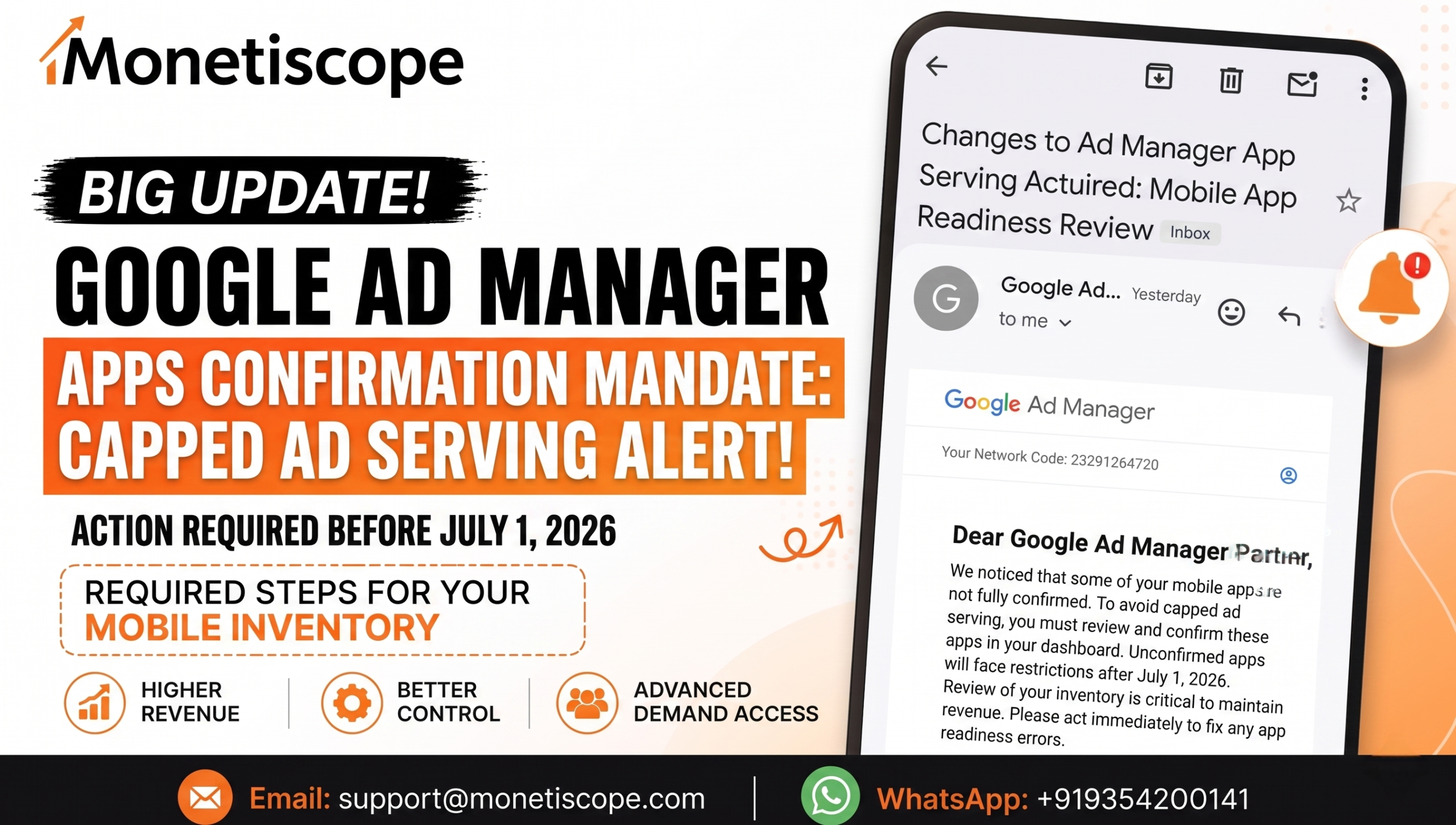
If you saw the recent email regarding your mobile applications, you need to pay close attention. Yikes. This particular update is actually a massive deal. You have to act before July 1, 2026. Otherwise, your revenue is going to take a huge hit. Honestly, nobody wants to lose hard-earned money over a simple dashboard error.
Navigating the Google Ad Manager app confirmation is your top priority right now.
If you are a publisher or an app developer, you rely on consistent ad serving. You pay your bills with those impressions. You fund your next big project with that revenue. Letting a technicality ruin your cash flow is simply unacceptable.
We are going to break down exactly what this email means. We will look at why Google is pushing this update. More importantly, we will show you exactly how to fix it.
What Is Actually Happening Here?
Over the last two years, Google rolled out something called app readiness reviews. This was a major shift in the ecosystem. They wanted to clean up the advertising space. To be fair, that makes total sense.
Advertisers want quality traffic. They pay top dollar for real human eyes. They absolutely do not want shady, unverified apps draining their marketing budgets.
Because of this, all new apps had to be thoroughly reviewed. They had to be officially approved before they could start serving ads. It was a strict gatekeeping process.
But what about the older apps? What about your existing digital inventory?
That is exactly where this new 2026 mandate comes into play. Google is closing the loophole. If you have an existing app that isn’t fully set up, you are on the radar. If it is not linked to a supported app store, you have a problem.
You are now required to officially claim and verify your properties in the dashboard.
The Dreaded Penalty: Capped Ad Serving
Let’s talk about the actual penalty for ignoring this. The email mentions “capped ad serving.” That phrase sounds relatively polite. It sounds mild.
It is not mild at all.
Capped ad serving means Google intentionally restricts how many ads show up. Your fill rates will plummet. Your daily impressions will fall off a cliff. Ultimately, this results in a massive drop in your overall revenue.
Wow. Imagine waking up in early July 2026. You check your earnings dashboard. You realize you are only making a fraction of your normal daily rate. That seems like an absolute nightmare, honestly.
You worked incredibly hard to build your mobile audience. You spent money on user acquisition. Do not let a simple administrative oversight ruin your profitability.
Why Is Google Being So Strict?
You might be wondering why they are forcing this issue right now. It all comes down to ecosystem trust.
Ad spoofing is a real problem in the adtech industry. Malicious actors sometimes pretend to be premium apps. They steal publisher ad codes. They generate fake traffic to steal advertiser money.
By forcing publishers to manually verify their inventory, Google stops this fraud. They ensure that only legitimate owners can monetize specific bundle IDs.
This protects the advertisers. It also protects legitimate publishers like you. It keeps the value of your real inventory high.
Myth vs. Truth: The App Readiness Update
People often get confused about these major policy updates. Let’s clear the air right now.
Myth: Capped ad serving only affects brand new Ad Manager accounts.
Truth: False. It affects absolutely everyone who has unconfirmed mobile inventory. Even veteran accounts are at risk.
Myth: I can just ignore the suggestions tab if my apps are already live.
Truth: Do not do this. Ignoring the dashboard alerts triggers the penalty automatically by the deadline.
Myth: Linking an app takes hours of complex coding work.
Truth: It requires zero coding. It is a simple administrative task inside the dashboard.
Myth: If I block an app by mistake, I lose it forever.
Truth: You can easily unblock an app with a single click later on.
Step-by-Step Guide: How to Fix The Issue
Google has actually made the resolution process fairly straightforward. You just need to know where to click. Let’s walk through the exact steps outlined in the recent communication.
First, you need to sign in to your main account. Make sure you have administrator privileges.
Look at the main sidebar on the left side of your screen.
Click on the “Inventory” section.
From that dropdown menu, click on “Apps”.
Now, look at the top navigation area. You will see a specific tab labeled “Apps to confirm”. Click on that tab immediately.
This is where the magic happens. You will see a list of highlighted applications. These are apps currently generating ad queries using your specific publisher code. However, they are not officially linked to your account yet.
Google gives you helpful data here to identify them. You will see the package name. You will see the bundle ID. You will even see the number of ad queries from the last seven days.
This data helps you easily spot your real properties.
Scenario A: It Is Your App
If you recognize the application, you need to claim it.
Look at the “Action” column on the right side.
Click the button that says “Finish Setup”.
You now have a choice. You can add this to your list by creating a new entry. Or, you can select a suggested unlinked existing entry.
Make your choice and click “Continue”.
Next, you must link the application to a supported app store. This is a critical step for verification.
Find your store listing. Click “Continue”.
Review all of your changes very carefully on the final screen. If everything looks correct, click “Add App”.
Bam. You are done with this specific property. You have successfully claimed it. Google will now run a few background checks to ensure policy compliance. Once cleared, it is fully ready to show ads without restrictions.
Scenario B: It Is NOT Your App
What if you see something weird on that list? What if someone is spoofing your code? Gross.
Do not panic. You can handle this easily.
Look at the “Action” column again.
Click the option that says “Not my app”.
This is a powerful action. It instantly blocks ad serving from that selected property on both Ad Manager and AdMob.
It deletes the shady property from your suggested list. It also removes it from surfacing in your Policy Center. It cleans up your app-ads.txt pages automatically.
This keeps your account healthy and free from invalid traffic violations.
Oops, I Made A Mistake!
We are all human. Mistakes happen all the time.
Did you accidentally click “Not my app” on your own property? No sweat.
You can reverse this action quickly. Go back to the “Apps to confirm” tab.
Filter the view to show only “Blocked” properties.
Find the one you messed up. Click “Unblock” in the action column.
It goes right back into your queue for proper setup.
The Cost of Ignoring The Deadline
Let’s dive deeper into the financial reality here. July 2026 might feel far away right now. It will sneak up on you fast.
Handling this Google Ad Manager app confirmation process manually can feel tedious. But it is necessary.
If you run a large portfolio, you might have dozens of unlinked properties. Going through them one by one is boring. But think about the alternative.
Imagine losing 80% of your daily yield because you skipped a thirty-minute task. That is just bad business. You cannot afford to be lazy with Google’s core policy updates.
They enforce these rules strictly by automated algorithms. There is no human support agent who will save you after the deadline passes. You must be proactive.
Understanding The Impact Visually
Sometimes it helps to see the data laid out clearly. Here is a simple breakdown of what happens based on your actions.
| App Status Before Deadline | Action Taken by Publisher | Ad Serving Post-July 2026 | Revenue Impact |
| Unlinked / Suggested | Clicked “Finish Setup” | Normal, unrestricted serving | Steady or growing |
| Unlinked / Suggested | Ignored the alert completely | Capped ad serving applied | Severe daily losses |
| Unlinked / Suggested | Clicked “Not my app” | Serving completely blocked | None (Fraud prevented) |
| Blocked by mistake | Clicked “Unblock” & Setup | Normal, unrestricted serving | Steady or growing |
As you can see, ignoring the dashboard is the only truly destructive option here.
Why Doing This Alone Is Extremely Risky
Managing ad tech is incredibly complicated these days. Honestly, it is a full-time job.
You are a business owner. You are a content creator. You should be focusing on building great products. You should be marketing to new users.
You definitely shouldn’t be fighting with a complex dashboard all day. AdX policies change constantly. Keeping up with them is exhausting.
If you mess up your app-ads.txt file during this process, you break your monetization. If you link to the wrong store URL, you get flagged for policy violations.
There are too many moving parts for a busy founder to juggle alone.
The Monetiscope Solution: Your Ultimate AdTech Partner
This is exactly where we step in to save the day. The expert team at Monetiscope is your ultimate solution for all things AdX.
We specialize in high-level ad revenue optimization. We handle all the tedious policy compliance tasks for you. We know these dashboards inside and out.
When Google rolls out massive updates like this, our partners do not panic. They know we already have it handled.
We protect your revenue streams actively. We maximize your daily yield through smart optimization. We even develop custom WordPress plugins specifically designed for publishers to make life easier.
Partnering with Monetiscope gives you total peace of mind. We can manage your entire Google Ad Manager app confirmation from start to finish.
You hand us the keys. We clean up the inventory. We link the stores. We block the spoofers. We ensure your revenue continues to flow without a single interruption.
No doubt, having industry experts in your corner is the smartest business move you can make today.
Beyond 2026: The Future of App Monetization
Let’s look ahead for a minute. This update is just one piece of a much larger puzzle.
Google is moving toward a highly verified, highly transparent ecosystem. Advertisers are demanding proof of quality. They want to know exactly where every single dollar goes.
In the future, we expect even stricter readiness checks. We expect continuous monitoring of app quality.
If your app crashes frequently, you might lose ad serving. If your app has abusive ad placements, you will definitely get banned.
The days of setting and forgetting your monetization are completely over. You need active management. You need constant optimization.
This is why having a partner like Monetiscope is crucial. We watch the trends. We adapt to the algorithms before they negatively impact your bottom line.
The Deep Dive: Why App-Ads.txt Matters Here
While we are on the topic of verifying inventory, let’s talk about your app-ads.txt file.
When you confirm an app in the dashboard, that is only step one. Step two involves ensuring your developer website hosts a valid text file.
This file publicly declares who is authorized to sell your inventory. It is a critical anti-fraud measure.
If you confirm your app in the dashboard, but your app-ads.txt file is missing, you still lose money. Buyers will simply refuse to bid on your inventory.
You must ensure that your publisher ID is correctly formatted within that file. You must ensure the file is hosted on the exact root domain listed in your app store profile.
It sounds highly technical, because it is. One typo can ruin your fill rate.
Again, this is why trying to manage a large portfolio alone is a bad idea. Let the experts handle the syntax and the hosting verifications.
The Threat of Invalid Traffic (IVT)
Let’s circle back to why you might see apps you don’t own in your dashboard.
Invalid traffic is a massive industry problem. Scammers use botnets to generate fake clicks. They try to funnel that fake traffic through stolen publisher IDs.
When you see a weird bundle ID in your “Apps to confirm” list, you are witnessing an IVT attempt.
By clicking “Not my app”, you are actively fighting ad fraud. You are telling Google’s algorithms that this specific traffic source is illegitimate.
This actually helps your overall account health. It proves to Google that you are a responsible publisher. It shows you monitor your traffic sources actively.
Accounts with high trust scores often get access to premium advertiser campaigns. So, cleaning up your dashboard actually boosts your long-term earning potential.
Final Thoughts and Immediate Action Plan
The clock is officially ticking. July 2026 will be here before you know it.
You cannot afford to procrastinate on this specific task. The financial penalties are simply too severe. Capped serving will destroy your business model.
Log into your account today. Check your inventory tab. See how many properties are currently unlinked.
If the list is small, handle it right now. Click the buttons. Link the stores.
If the list is massive, or if you feel overwhelmed by the technical requirements, reach out immediately. Contact the team at Monetiscope.
We will audit your entire account setup. We will secure your inventory. We will make sure you are fully compliant long before the deadline hits.
Do not leave your revenue to chance. Take control of your adtech stack today.
Frequently Asked Questions (FAQ)
What is the absolute final deadline for this update?
You must complete all necessary setups before July 1, 2026. Failing to do so triggers automated penalties from the system.
What exactly happens if I miss the deadline?
Your unverified inventory will face severely capped ad serving. This restricts the volume of ads shown, drastically reducing your daily earnings.
Where do I find the list of properties I need to review?
Log into your main dashboard, navigate to the sidebar, click “Inventory,” then select “Apps,” and open the specific “Apps to confirm” tab.
What does the “Not my app” button actually do?
Clicking this permanently blocks ad serving for that specific bundle ID. It prevents scammers from monetizing fake traffic using your unique publisher code.
Can I reverse a blocked decision if I make a mistake?
Yes, the process is very forgiving. Simply filter your dashboard view to show blocked properties and click the unblock option to restore it.
Does this new policy affect my desktop web inventory too?
No, this specific update targets mobile applications exclusively. Web properties rely on different verification methods like standard ads.txt files.
Why is Google forcing publishers to do this right now?
They are trying to aggressively clean up the mobile advertising ecosystem. Verifying ownership protects advertiser budgets and maintains high traffic quality.
How long do the readiness checks take after I finish the setup?
Usually, the automated background checks only take a few days. However, complex accounts might require slightly longer review periods.
Can the team at Monetiscope handle this entire process for my company?
Absolutely. Our adtech experts specialize in dashboard management, policy compliance, and revenue optimization for busy publishers.
What happens if I confirm the property but forget to update my app-ads.txt file?
You will still experience major revenue drops. Premium buyers require both dashboard confirmation and a valid, publicly hosted text file to bid.